
Name your automations clearly from the start, and you can manage a CRM with 80 workflows as easily as one with eight. Skip the naming conventions, and by the time you hit 30 workflows, no one on the team (including you) can tell what's live, what's paused, or why two sequences might be messaging the same contact at the same time.
This post covers the exact naming and tag schema we use at Lyfework across every automation build: workflow names, tag families, pipeline stage names, folder structure, and how to run an audit on an inherited account. It fits within our broader business automation guide for service companies, which covers which systems to build and in what order. This post goes deeper on the organizational layer that makes those systems sustainable. If you're still evaluating whether CRM automation is the right next step for your business, our AI receptionist and automation service page covers what a fully set-up system looks like in practice for local service businesses.
Why do naming conventions break down, and what actually fixes them?
Naming conventions break down because they're usually an afterthought. Someone builds a workflow quickly, calls it "Test" or "New flow," and tells themselves they'll clean it up later. Later never comes. Within six months, the account has layers of workflows from different builders with no shared logic, and every change carries the risk of breaking something invisible.
When we inherit a CRM account that was built by multiple people over a couple of years, the first thing we do is export every workflow name into a spreadsheet and run a naming audit before touching anything. Without consistent conventions, it's impossible to tell which workflows are live versus paused, or which ones might fire for the same contact simultaneously. That export is almost always humbling: names like "Test 1," "New flow," "Copy of Copy of booking sequence," timestamps with no context. We've seen accounts where two separate automations were sending messages to the same contact at the same time because no one knew both existed.
The fix is a naming schema applied consistently before you build anything new, and retroactively cleaned up during an audit of what already exists.
What is the right format for naming CRM workflows?
The format that works across every platform is: trigger-layer-action-version, written in lowercase with hyphens.
Here's what each segment means in practice:
- Trigger: What starts the workflow. Common values: LEAD (new contact enters), BOOK (appointment created), NOSHOW (no-show tagged), POSTVISIT (visit complete), REVIEW (review requested), PAYMENT (payment event).
- Layer: Where in the customer journey this workflow lives. Values: ACQUIRE, NURTURE, DELIVER, RETAIN, OPS.
- Action: What the workflow does, in plain terms. Examples: sms-followup, email-confirm, review-request, re-engage.
- Version: v1, v2, v3. Always present, even on the first build. Starting at v1 costs nothing; retrofitting version control onto a tangled account costs days.
A completed workflow name looks like this:
LEAD-NURTURE-sms-followup-v1BOOK-DELIVER-email-confirm-v2NOSHOW-RETAIN-re-engage-v1POSTVISIT-RETAIN-review-request-v3
The format is readable at a glance. Anyone who opens the account can scan the workflow list and immediately understand what each automation is for, what triggers it, and whether it's the current version. That readability is the whole point.
One rule that matters: never edit a live workflow to create a new version. Build the new version alongside the existing one, give it the incremented version number, then shift the trigger to the new workflow once it's tested. Archive the old one, don't delete it. If something breaks downstream, you can reference what the previous version did.
How should tags be organized across the whole CRM?
Tags should be split into four families, each with its own prefix. Prefixing is what makes a tag list manageable at scale because you can filter by prefix and immediately see just the family you're working with.
1. Source tags (prefix: src-)
Source tags record where a contact came from. They go on the contact at the point of capture and never change. Examples:
src-fb-adsrc-google-adsrc-referralsrc-website-formsrc-walkinsrc-google-profile
Source tags are your attribution layer. When you want to know which channel is producing contacts that actually convert, you filter by source tag. They also help you segment communication: a referral from a current client deserves a different first message than a cold ad lead.
2. Status tags (prefix: status-)
Status tags reflect the contact's current state in your pipeline or sequence. They're dynamic: they get applied and removed as the contact moves. Examples:
status-new-inquirystatus-proposal-sentstatus-no-showstatus-awaiting-paymentstatus-in-service
The key discipline here: when you apply a new status tag, remove the previous one. A contact with status-new-inquiry and status-in-service simultaneously is a data reliability problem. Build the tag removal into the same workflow step that applies the new tag.
3. Lifecycle tags (prefix: stage-)
Lifecycle tags describe the contact's relationship with your business at a broader level. They change slowly. Examples:
stage-leadstage-active-clientstage-past-clientstage-vipstage-at-risk
Lifecycle tags drive your retention and re-engagement automations. A contact tagged stage-past-client qualifies for a dormant-client re-engagement sequence. One tagged stage-active-client does not. That distinction, clearly encoded in a tag, is what prevents a client who just paid from receiving a "we miss you" campaign. For a full look at the automation systems we build around these tag families, from re-engagement to referral flows, see our capabilities page.
of small businesses using generative AI and automation tools report efficiency gains, with cleaner data structures being a primary driver.
4. Suppression tags (prefix: suppress-)
Suppression tags are gates. They sit at the entry condition of an automation and exclude anyone who carries them. They're the most important family for preventing conflicting messages. Examples:
suppress-unsubscribedsuppress-competitorsuppress-active-client(for new-lead campaigns)suppress-litigioussuppress-do-not-contact
Every marketing or nurture automation should check for at least suppress-unsubscribed and suppress-do-not-contact at entry. SMS automations should also check for TCPA-related suppression tags, which connects to the TCPA and SMS compliance rules we follow on every text-based automation we build.
How should pipeline stages be named in a service business CRM?
Pipeline stages should reflect real moments in your process, named in plain language that any team member can interpret without explanation. Vague labels like "Stage 1" or "Hot Lead" create inconsistency: different people move contacts at different points because the label doesn't tell them when to move it.
A clean pipeline for a service business might look like this:
- New Inquiry
- Proposal Sent
- Booked
- In Progress
- Complete
- Needs Follow-Up
- Lost
Each stage name makes the required action obvious. "Proposal Sent" means someone needs to follow up on the proposal. "Needs Follow-Up" means an owner flagged this contact for manual outreach. There's no ambiguity about what "In Progress" means for a job that's currently running.
One mistake to avoid: turning the pipeline into a tag replacement. If you find yourself creating 15 pipeline stages to capture every nuance of contact state, most of those stages belong in tags instead. Pipeline stages track deal progress; tags track contact attributes and automation eligibility. Keeping the two separate is one of the main things that makes the pipeline dashboards we build actually readable at a glance. A clean pipeline is also foundational to any web design and booking system we build, the intake form, the CRM pipeline, and the booking flow need to speak the same language from day one.
What folder structure should I use for CRM workflows?
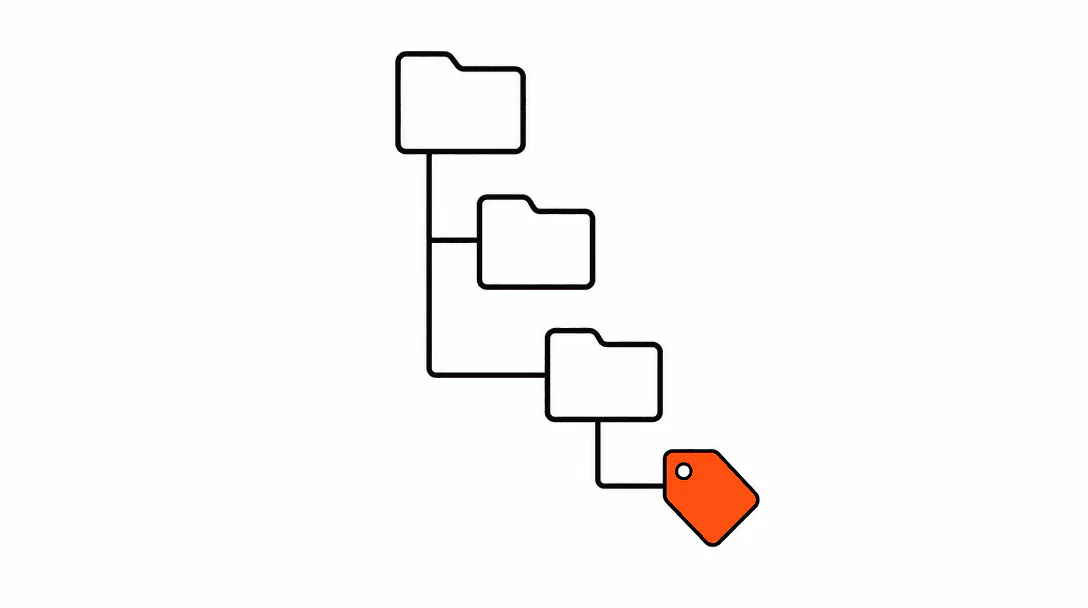
Group workflows into folders by layer, matching the layer segment in your naming convention. Five folders cover almost every service business:
- 01 - Acquisition: Lead capture, initial nurture, ad-driven entry flows.
- 02 - Nurture: Follow-up sequences, proposal follow-up, multi-touch outreach.
- 03 - Service Delivery: Booking confirmations, appointment reminders, no-show recovery.
- 04 - Retention: Post-visit follow-up, review requests, re-engagement, referral flows.
- 05 - Operations: Internal notifications, pipeline moves, reporting triggers, team alerts.
Add a sixth folder: Archive. When a workflow is replaced by a new version, it moves to Archive rather than being deleted. You don't need the Archive folder visible to the team day-to-day, but you need it before you touch a live account, because deleting a workflow with contacts still enrolled in it mid-sequence breaks those contacts' journeys without warning.
Number the folders (01, 02, etc.) so they sort in the right order. Most platforms sort alphabetically, so "Archive" sits at the top by default without the number. Put a "ZZ - Archive" folder at the bottom instead.
How do I stop two automations from firing for the same contact?
Three mechanisms work together to prevent double-firing, and all three need to be in place. Using only one creates gaps. The full picture is covered in the post on exit conditions for automations, but here's the overlap with naming and tags.
First: suppression tags at entry. Every automation that could conflict with another should check for the relevant suppression tag before enrolling the contact. A contact currently in a nurture sequence gets suppress-active-nurture applied when they enter. The next automation checks for that tag and skips them.
Second: goal conditions that exit the contact when their stage changes. If a contact books an appointment while enrolled in a lead-nurture sequence, a goal condition on the workflow should fire and remove them. Without it, they receive the next nurture message after they've already booked, which is confusing and unprofessional.
Third: the version convention itself. When you build v2 of a workflow, you turn off the trigger on v1 before activating v2. Contacts enrolled in v1 complete their remaining steps, then the workflow closes naturally. You never have two live versions of the same workflow running simultaneously.
How do I audit an account I inherited?
The audit starts with an export, not a cleanup. Open a spreadsheet, list every workflow name, its current status (live, paused, draft), and when it was last modified. Do the same for the tag list. Getting the full inventory in front of you before touching anything is what prevents the most common mistake: deleting a workflow that still has contacts enrolled in it.
We once inherited an account with 47 workflows. Twelve had names with no meaning ("Test 1," "New," "Copy of Copy of booking sequence"). Eight were paused with no note explaining why. Two active workflows were sending SMS messages to the same contact pool with slightly different copy, and no one knew which was the intended one. The cleanup took two days, mostly because we had to trace each workflow's trigger and enrolled contacts before making a single change.
With the export in hand, work through the following in order:
- Flag all live workflows with non-standard names. Do not rename them yet.
- For each flagged workflow, check how many contacts are currently enrolled and what the workflow does step by step.
- Identify duplicates: two or more workflows with the same trigger targeting the same contact pool.
- Resolve duplicates first (consolidate or deactivate one), then rename all live workflows to the standard format.
- Move paused and retired workflows to the Archive folder.
- Apply the tag naming audit second: export all tags, group by prefix (or by what they seem to be doing), remove tags with zero contacts, and rename non-standard tags to the prefixed format.
After the audit, write a one-paragraph description in the notes field of every live workflow. Trigger, audience, what it does, when it exits. Anyone who opens the account three months later should be able to read that note and understand the workflow without reverse-engineering it step by step.
What should go in the workflow description field?
A description that actually helps covers four things in two sentences: what triggers the workflow, who it applies to, what it does, and when it exits. For example: "Fires when a new lead submits the website contact form. Sends three SMS messages over 48 hours to encourage a call booking; exits when the lead books an appointment or receives the suppress-unsubscribed tag."
That description can be read in ten seconds, and it answers every question someone needs before editing the workflow. The alternative is spending 20 minutes tracing every step to figure out what the workflow does before you can change one message. Across a large account, those 20-minute sessions add up fast.
On every build we hand off, descriptions are required before the account goes live. It's a non-negotiable part of the build standard, for the same reason documentation matters in any codebase: the person building it isn't always the person maintaining it.