
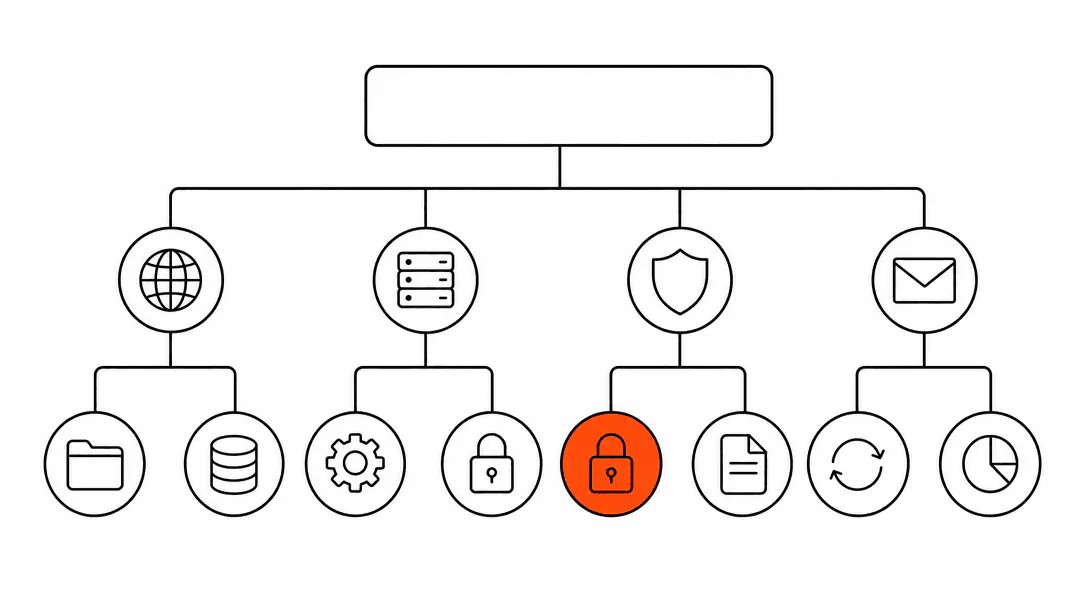
A correctly configured business domain means your email reaches inboxes, your website loads on both www and the bare domain, search engines see one canonical version of your site, and your contact information stays off spam lists. Most guides stop after "point your nameservers here." This one covers the eight configurations that happen after that, because those are the ones that actually matter.
This post is part of the website foundation guide for service businesses. If you are starting from scratch, that piece lays out the full picture before you get into the details here. Getting the domain and infrastructure layer right is the foundation for the website and conversion system that sits on top of it, and for the search visibility that depends on a clean, canonical setup to work properly.
Who should own the domain, and does it matter?
The domain should be registered in your name, under an account you control, at a registrar you chose. This sounds obvious, but a large number of service businesses discover their web developer or their old marketing contact registered the domain in their own account, years after the fact, usually when the relationship ends badly.
On almost every site audit we run, we check the WHOIS record first. A contractor might have a site that looks professional, but the domain is registered to a third party with a different email address attached. If that person disappears or goes silent, renewing the domain, updating the nameservers, or recovering from an expired registration becomes a serious problem with no clean resolution.
Register the domain yourself. Use your business email address, not a personal Gmail. Set up auto-renew and make sure the payment method attached to the account stays current. The registrar will send renewal notices to whichever email is on the account, so that email needs to be one you actually check. We go deeper on this in the full breakdown of who actually owns your website, domain, and data.
What is WHOIS privacy and do I need it?
WHOIS privacy replaces your personal contact information in the public domain registry with generic registrar contact details. You should enable it at registration, and it costs nothing with most registrars today.
When you register a domain without privacy protection, your name, street address, phone number, and email go into a publicly searchable database that anyone can query. Spam lists harvest this data automatically. You will start getting cold calls and emails within days. Enabling privacy protection takes one checkbox and prevents all of that.
One note: WHOIS privacy does not hide your ownership legally. ICANN still has the actual registrant data on record. It just keeps it off the public-facing lookup. For a business domain, there is no reason not to enable it.
How do you set up the www vs. non-www redirect?
Pick one version (most sites today use the non-www, bare domain) and configure a 301 redirect so the other version always forwards to it automatically. Without this, Google can treat example.com and www.example.com as two separate sites, each with their own partial link equity, and index duplicate pages.
The most common domain setup mistake we see is a naked domain that does not redirect to www, or vice versa. It splits link equity and can cause Google to index duplicate pages. A single canonical redirect rule fixes it in two minutes, but it gets skipped because nobody told the business owner it mattered.
Where you make this change depends on your hosting setup. On Vercel, you add a redirect entry in vercel.json. On Apache hosting, it goes in .htaccess. On Cloudflare, you set a page rule or use the redirect rules UI. Your hosting provider's documentation will show the exact syntax, but the logic is always the same: one version is canonical, the other sends a permanent 301 redirect to it.
Does my domain need SSL, and how does it renew?
Yes. Every business domain needs an SSL certificate, which is what puts the padlock in the browser bar and the https:// at the start of your URL. Browsers flag non-HTTPS sites as "Not Secure," and search engines treat HTTPS as a ranking signal. If your site runs on HTTP only, some visitors will get a security warning before they even see your homepage.
Most modern hosting providers issue SSL certificates automatically through Let's Encrypt, which is a free certificate authority. The certificate renews every 90 days, also automatically, as long as your hosting is active and the domain DNS still points to the right place. The place this breaks down: a business moves to a new host, updates the site, but forgets to provision an SSL certificate on the new server. The old certificate expires and suddenly the site shows a security error.
After any hosting migration, confirm that HTTPS is active and that HTTP requests redirect to HTTPS. You can check this by visiting http://yourdomain.com in a private browser window. If it resolves to https:// without a warning, the SSL and the redirect are both working. For more on what belongs in a complete security setup, see our guide to SSL, HTTPS, and security headers for small business sites.
How do you set up email on a business domain?
Email on a custom domain works through MX records: DNS entries that tell the internet which mail server handles email for your domain. If the MX records are missing or wrong, email sent to your address either bounces back or disappears quietly.
A contractor we worked with had set up Google Workspace for his business email, which was the right call. The problem was that his domain registrar had default MX records already in place, pointing to their own basic email service, and when he added Google's MX records through GoDaddy he did not delete the old ones. Two sets of MX records with conflicting priorities meant some incoming mail landed in Google Workspace and some went to an inbox he never checked. Clients were emailing him and getting no reply. He thought the inquiries were slow. The inquiries were arriving somewhere he could not see.
When you set up a new email provider, you get a list of MX records with their priority values. Delete any existing MX records first, then add the new ones. Your email provider (Google, Microsoft, Zoho, whoever you chose) will give you the exact records. After adding them, you can verify the setup at MXToolbox to confirm they are resolving correctly before you start handing out the email address.
What is SPF and why does email need it?
SPF (Sender Policy Framework) is a DNS record that tells receiving mail servers which servers are authorized to send email on behalf of your domain. Without it, your emails are more likely to land in spam, and other people can spoof your domain in phishing emails.
SPF lives in a TXT record on your domain. When you set up Google Workspace or Microsoft 365, they give you the specific SPF record to add. It looks something like v=spf1 include:_spf.google.com ~all. You add it as a TXT record in your DNS settings. The full picture of email authentication includes DKIM and DMARC as well, which together make a stronger defense against your domain being used in spam. The details on all three are covered in our guide to SPF, DKIM, and DMARC for business email.
Of business calls go unanswered, and fewer than 3% of voicemail-routed callers leave a message. Your email reaching inboxes reliably is at least as important as your phone being answered.
Do I need a sitemap and robots.txt on my domain?
A sitemap tells search engines which pages exist on your site. A robots.txt file tells them which pages they are allowed to crawl. Both belong in your root domain, and both take a few minutes to set up correctly.
The sitemap goes at yourdomain.com/sitemap.xml. It lists the URLs of all the pages you want indexed. For a standard service business site with a homepage, service pages, about page, and contact page, the sitemap might be twenty lines of XML. Most website builders and CMS platforms generate this automatically. If your site is custom-built, you create it manually or with a simple script and reference it in Google Search Console.
The robots.txt file goes at yourdomain.com/robots.txt. The most basic version allows all crawlers on all pages: User-agent: * / Allow: / with a reference to your sitemap URL. Where this matters is when you have admin pages, checkout flows, or staging content you do not want indexed. You block those paths explicitly in robots.txt rather than relying on crawlers to skip them.
After your domain is live, submit the sitemap URL in Google Search Console (also free). This does not guarantee faster indexing, but it gives Google a clean map of your site rather than relying purely on link discovery.
How long does it take for DNS changes to take effect?
Most DNS changes take effect within a few minutes to a few hours. The upper end is 48 hours, which is the number registrars use as their official quote, but in practice records update faster than that for most providers today.
The reason it is not instant is that DNS is a distributed system. Your domain's records are cached by DNS servers worldwide, and each cache has its own Time to Live (TTL) setting that controls how long it holds the old record before checking for updates. Shorter TTLs mean faster propagation, which is why it is worth lowering your TTL to something like 300 seconds (5 minutes) a day or two before any planned DNS change. After the change is in place, you can raise it back.
During propagation, different visitors may see different versions of your site depending on which DNS cache their connection hits first. For critical changes like MX records, schedule them during low-traffic hours. Tools like dnschecker.org let you see which DNS servers around the world have picked up the new records, so you know when propagation is complete rather than guessing.
What does a complete domain setup checklist look like?
Here are the eight configurations that take a domain from "purchased" to "production-ready." Work through them in this order because some depend on others being in place first:
- WHOIS privacy enabled at registration, before the record goes public.
- Registrant contact is you (your name, your business email, your payment method for auto-renew).
- Nameservers pointing to your host, which is usually the first step your hosting provider asks for.
- Canonical redirect in place so one version of your domain (www or non-www) 301 redirects to the other.
- SSL certificate active, with HTTP forcing a redirect to HTTPS.
- MX records set to your email provider, with old default MX records deleted first.
- SPF TXT record added for your email provider (DKIM and DMARC to follow).
- Sitemap submitted in Google Search Console, robots.txt confirmed at the root.
Each of these is a five-minute task on its own. The problem is that nobody hands you this list when you buy a domain. Most people get through steps one and three and call it done. The rest sit unconfigured until something breaks: email starts bouncing, the site gets flagged as insecure, or a Google audit surfaces duplicate pages from the missing canonical redirect.